We’re updating our integration with Docusign with our scheduled software release the evening of Monday, April 27. After we release the update, all IRES customers that use Docusign through the IRES Contracts system will need to re-authenticate their Docusign account.
Step 1
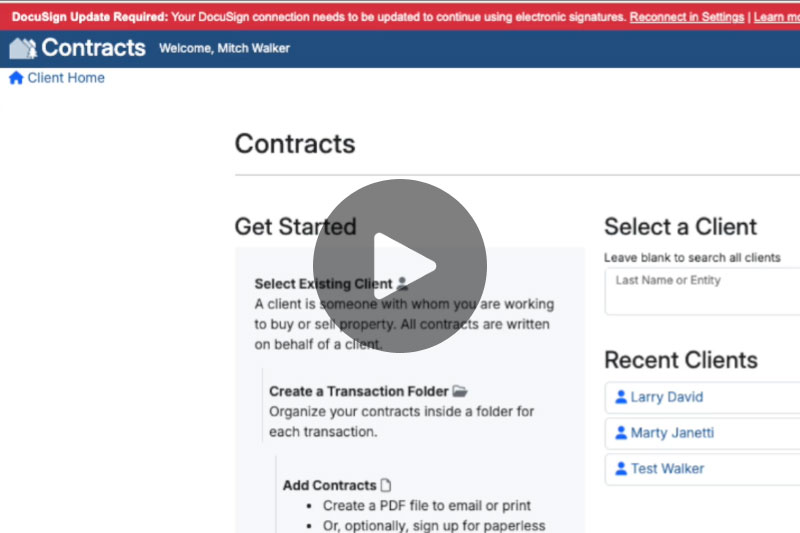
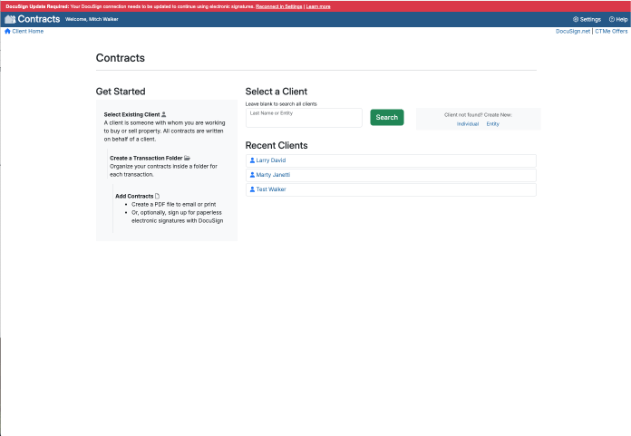
Go to the IRES Contracts System, where you will see a red banner on the top of the screen. Within the red banner at the top of the screen, click on “Reconnect in Settings”:
Step 2
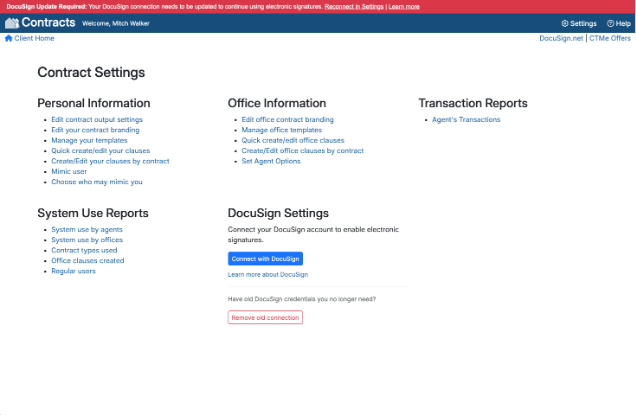
Located in the middle or towards the right of the screen, depending on what settings you have in the IRES Contracts system, there is a “Connect with Docusign” button. Please click that button:
Step 3
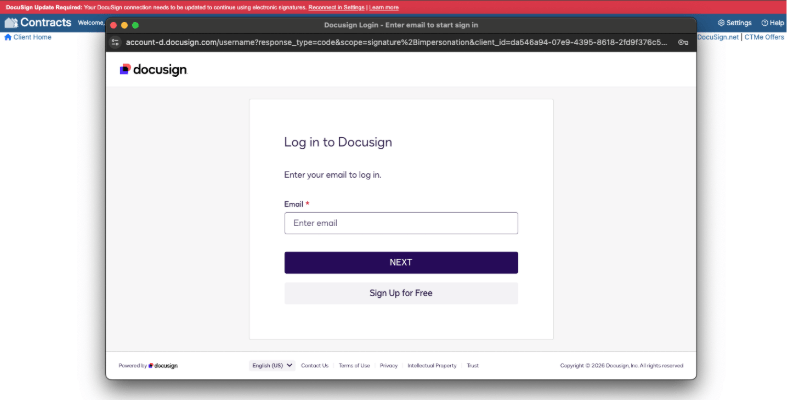
There will be a window that pops out for Docusign, enter the email address you have associated with your Docusign account:
Step 4
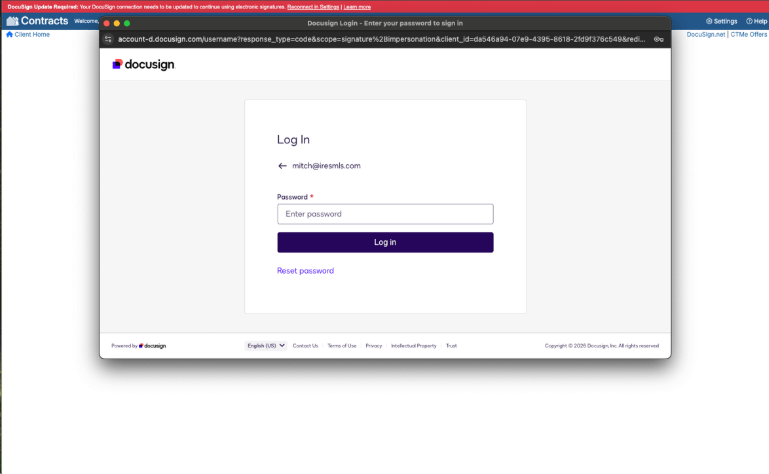
Then it will ask you to enter your Docusign password:
Step 5
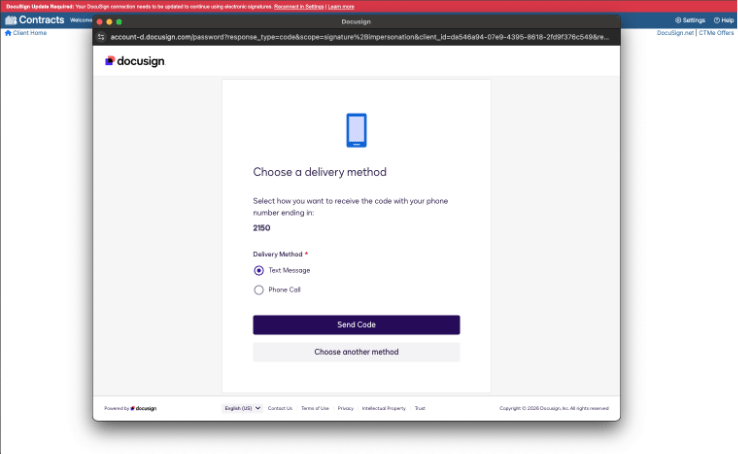
Once you have entered your password and click login, you will be asked if you want to have an authentication code sent to you via text, phone call, or to “Choose another method”:
Step 6
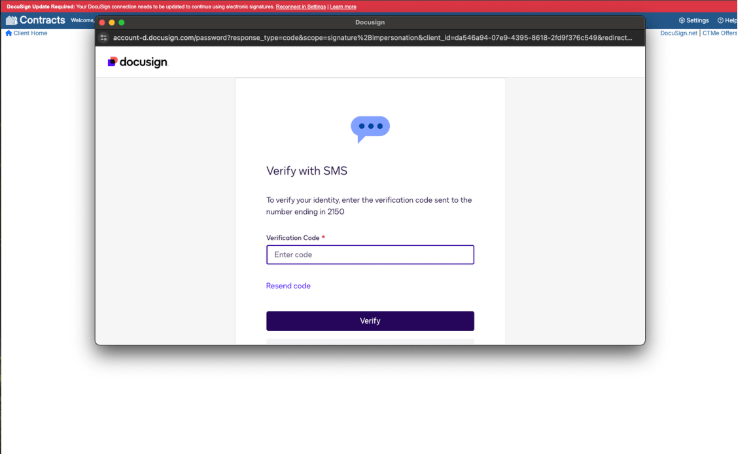
If you decide to have the authentication code sent to you via text or phone call, it will be sent to you and then you can enter the code on the next step:
Step 7
If you’d prefer not to get a text or phone call with the authentication code, you can click “Choose another method,” to have the code emailed to you:
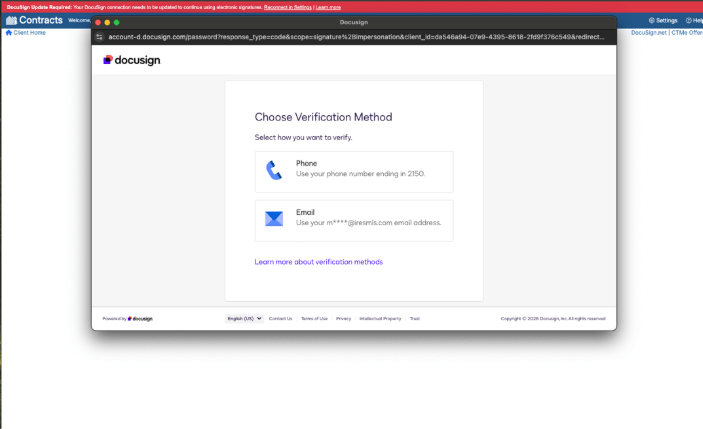
Step 8
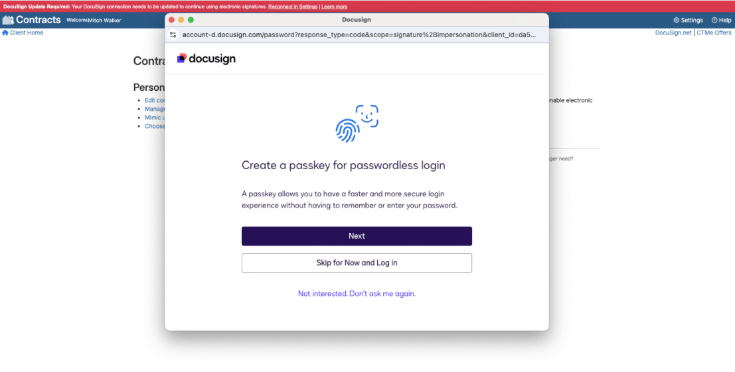
Once you’ve entered the authentication code, you are given the option to create a passkey for your account. You have the choice to create a passkey, skip for now, or that you are not interested and to not be asked again: